How to Speed Up a Slow Laptop: 8 Fixes That Work (No New Laptop Needed)
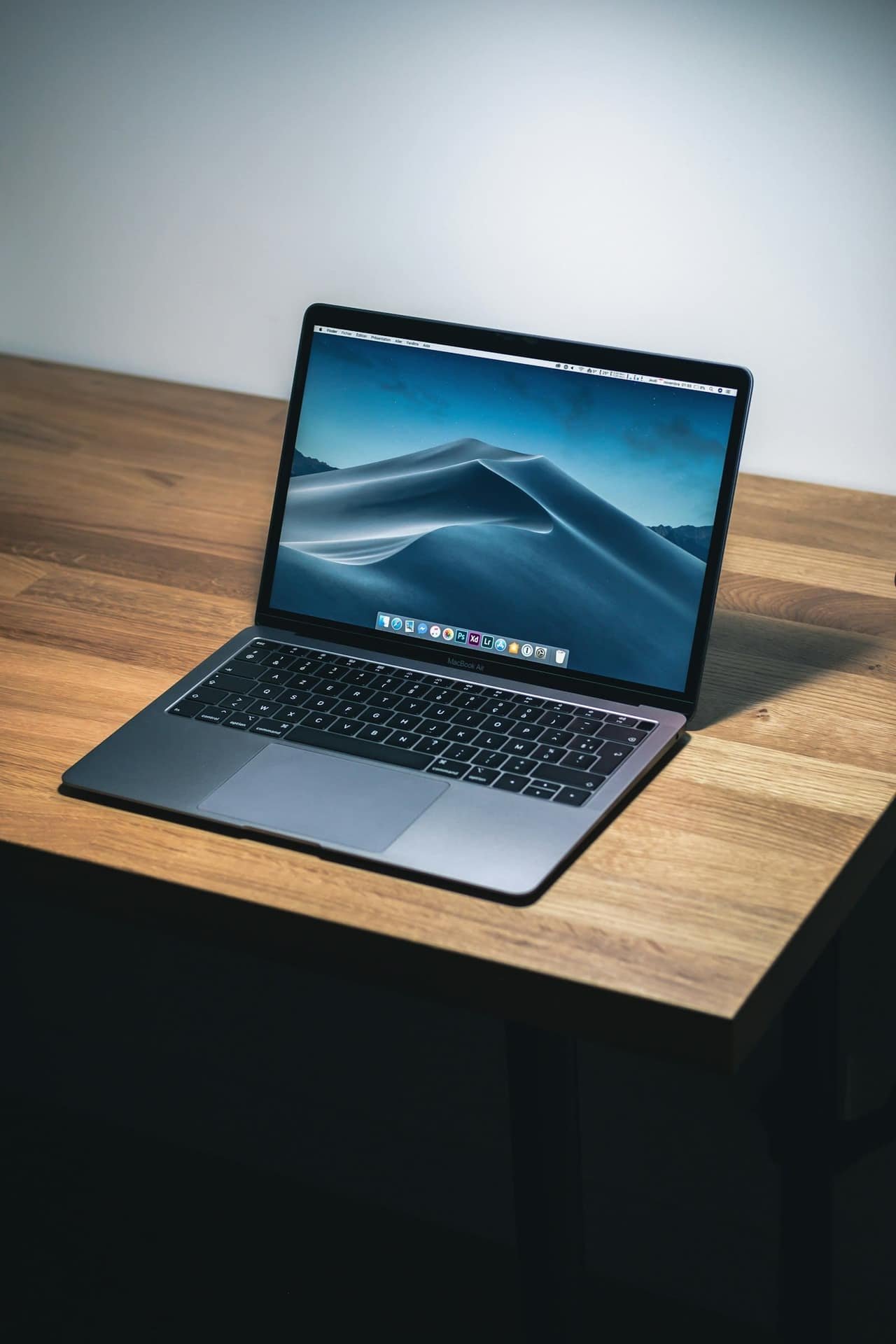
A slow laptop feels like the universe telling you to spend $800. Usually it isn’t. I’ve revived four “dead” laptops for friends in the past year, and only one actually needed replacing.
The other three were just clogged — too much junk at startup, a full drive, or a fan packed with dust. None of that needs a new machine. It needs an hour.
Work these fixes in order. They go cheapest and easiest first. Stop the moment your laptop is fast enough — you might not reach the bottom.
1. Restart it — actually restart it
You’ll learn why “closing the lid” has done nothing for weeks.
Shutting the lid is sleep, not a restart. A real restart clears memory, kills stuck background processes, and finishes pending updates.
Most people haven’t done a true restart in a month. Do it first. It fixes more than it has any right to, and it costs nothing.
2. Kill the startup hogs
This section is where most laptops get half their speed back.
A big chunk of your slowness is programs launching at boot that you never asked for — Spotify, Adobe helpers, game launchers, silent “updater” services. They all fire the second you log in and sit there eating memory.
- Windows: Task Manager → Startup apps tab → disable anything you don’t need open the instant you log in.
- Mac: System Settings → General → Login Items → trim the list.
Spotify and Steam do not need to launch at boot. Neither does anything with “Helper” or “Updater” in the name. Turn them off.
3. Free up your disk — and know the 85% rule
Here’s the part the “just delete files” articles never explain.
A nearly-full drive doesn’t just run out of room — it runs slow. An SSD needs free space to shuffle data around and manage wear. Once you cross roughly 85% full, it starts choking, and that alone can be your whole problem.
So don’t just delete a few things. Get back under 85%:
- Empty the trash for real (deleting doesn’t free space until you do).
- Move big files — videos, photos — to an external drive or the cloud.
- Uninstall games and apps you haven’t opened in six months.
Quick gem: on Windows, search “Disk Cleanup” and tick Windows Update Cleanup. It often reclaims several gigabytes of old update files in one click.
4. Find what’s actually eating your memory
You’ll learn to spot the one program quietly using everything.
Open Task Manager (Windows) or Activity Monitor (Mac). Sort by Memory, then by CPU. You’re hunting for a single offender hogging the machine.
The usual suspect is Chrome with 40 tabs open. Inside Chrome, press
Shift + Esc to open its own task manager and see which exact tab or extension
is the pig — most people never know this exists.
A rogue browser extension is the second most common cause. If you installed some “coupon finder” or “PDF converter” extension, remove it. They’re famous resource drains.
5. The one nobody mentions: heat and dust
This is the fix the listicles are too squeamish to give you, and it’s often the real answer for an older laptop.
If your laptop is fine for ten minutes then crawls — especially while the fan roars — it’s thermal throttling. The chip is overheating, so it deliberately slows itself down to cool off.
The cause is almost always dust packed into the fan and vents. The fix:
- Power off, and blow out the vents with a can of compressed air.
- Don’t run the fan backwards into more dust — short bursts, hold the fan still.
- Use it on a hard surface, not a blanket that blocks the vents.
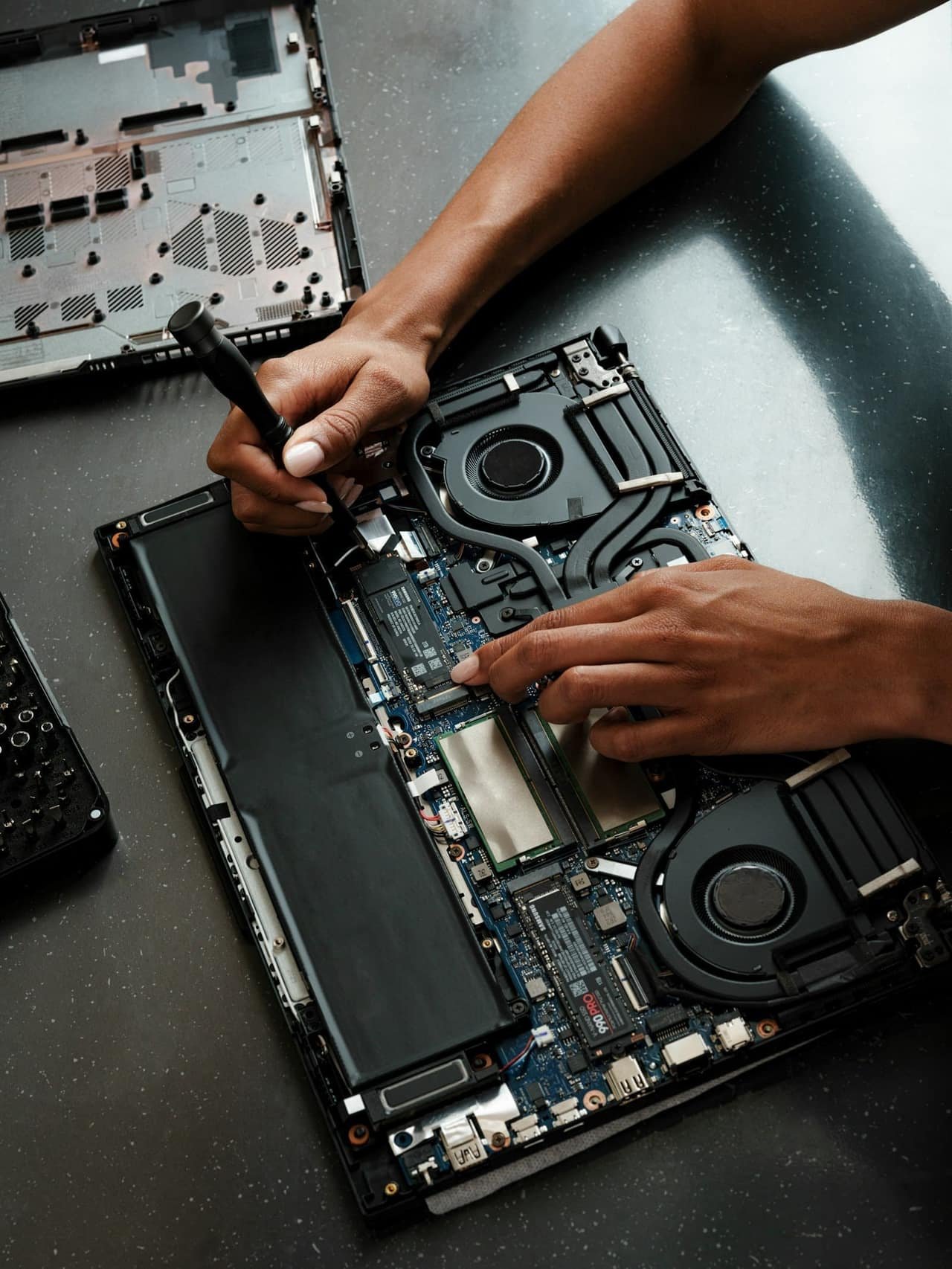
A five-minute dust-out has brought more “dying” laptops back to life for me than any software trick. If you’re comfortable opening the back panel, clearing the fan directly and replacing the thermal paste is the nuclear option — cheap, and it can add years.
6. Update everything, then scan for the real junk
Overview: updates fix speed, and the “cleaner” apps are the problem, not the cure.
Run all system updates first — they include genuine performance and security fixes. Reboot when it’s done.
Then, the counterintuitive part: do not install a “PC cleaner” or “speed booster” app. Those are some of the worst bloat and adware out there. The thing promising to clean your laptop is usually the thing slowing it down.
If you want a real check, a reputable free malware scanner does the job. (I keep a short list in my free tools that replaced paid apps post.)
7. The single upgrade actually worth money
If you’ve done all that and it’s still slow, there’s one hardware fix that’s close to magic.
Swapping an old spinning hard drive for an SSD can make a seven-year-old laptop feel brand new — for under $60 and an hour of work. Adding RAM is the other big one if you run lots of apps at once.
One warning before you buy anything: on many modern laptops the RAM is soldered to the board and can’t be upgraded, and some have the SSD soldered too. Look up your exact model first. If it’s upgradeable, this is the best money in all of personal tech. If you’re not comfortable opening it, any local shop does it cheaply.
8. When to actually give up
You’ll know it’s genuinely time, not just frustration talking.
Replace the laptop only when:
- It can’t take an SSD or more RAM, and maxed-out specs still choke.
- The battery is dead or visibly swollen (stop using a swollen battery now).
- It no longer gets security updates — that’s a real deadline, not just slowness.
That last one matters most. An operating system that’s stopped getting patches is a security risk, not just a slow computer. While you’re sorting out security, a password manager is the other hour well spent.
Frequently asked questions
Why is my laptop suddenly so slow? Most often a background update or a newly installed app (or browser extension) is hogging resources, or your drive crossed ~85% full. Start with a real restart and Task Manager — the cause is usually one specific program.
Does clearing the cache speed up a laptop? A little, and mainly for the browser. It won’t fix a genuinely slow machine — startup hogs, a full drive, and heat are the bigger levers. Don’t expect a cache clear alone to transform anything.
Is it worth upgrading an old laptop instead of buying new? Usually yes, if it can take an SSD or more RAM. A ~$60 SSD swap often beats a $800 replacement. Only buy new when the machine can’t be upgraded or has stopped getting security updates.
Next steps
- Do steps 1–4 right now — they’re free and fix most laptops in 20 minutes.
- If it heats up and crawls, get a can of compressed air and do step 5 this week.
- Still slow? Look up whether your model takes an SSD or RAM upgrade before spending a cent on a new machine.
- Once it’s fast again, lock it down — set up a password manager so a quick laptop stays a safe one too.
Image credits: hero photo by Howard Bouchevereau on Unsplash; laptop repair photo by Samsung Memory on Unsplash.